Download the DMG (disk image) or ZIP (archive) for your Mac.
Open the DMG or extract the ZIP. Move Personal Reminder Assistant into Applications.
Launch it from Applications. The macOS download is currently v1.0.28.
If macOS blocks the app, confirm that you used the official source and follow your Mac’s security guidance or ask your administrator.
Keep the app running for reminders. Your trial starts at first launch.
Linux · AppImage or Debian / Ubuntu
Choose AppImage for a compatible Linux desktop, or .deb for Debian / Ubuntu.
For AppImage, save it in a permanent folder and enable “Allow executing file as program” in file permissions.
For .deb, open the package in your system’s software installer and follow its prompts.
Open Personal Reminder Assistant. If dependencies are missing, follow your distribution’s package guidance or contact support.
Your 72-hour trial starts at first launch; no signup is needed.
02 / MAKE YOUR FIRST REMINDER
Start with something real.
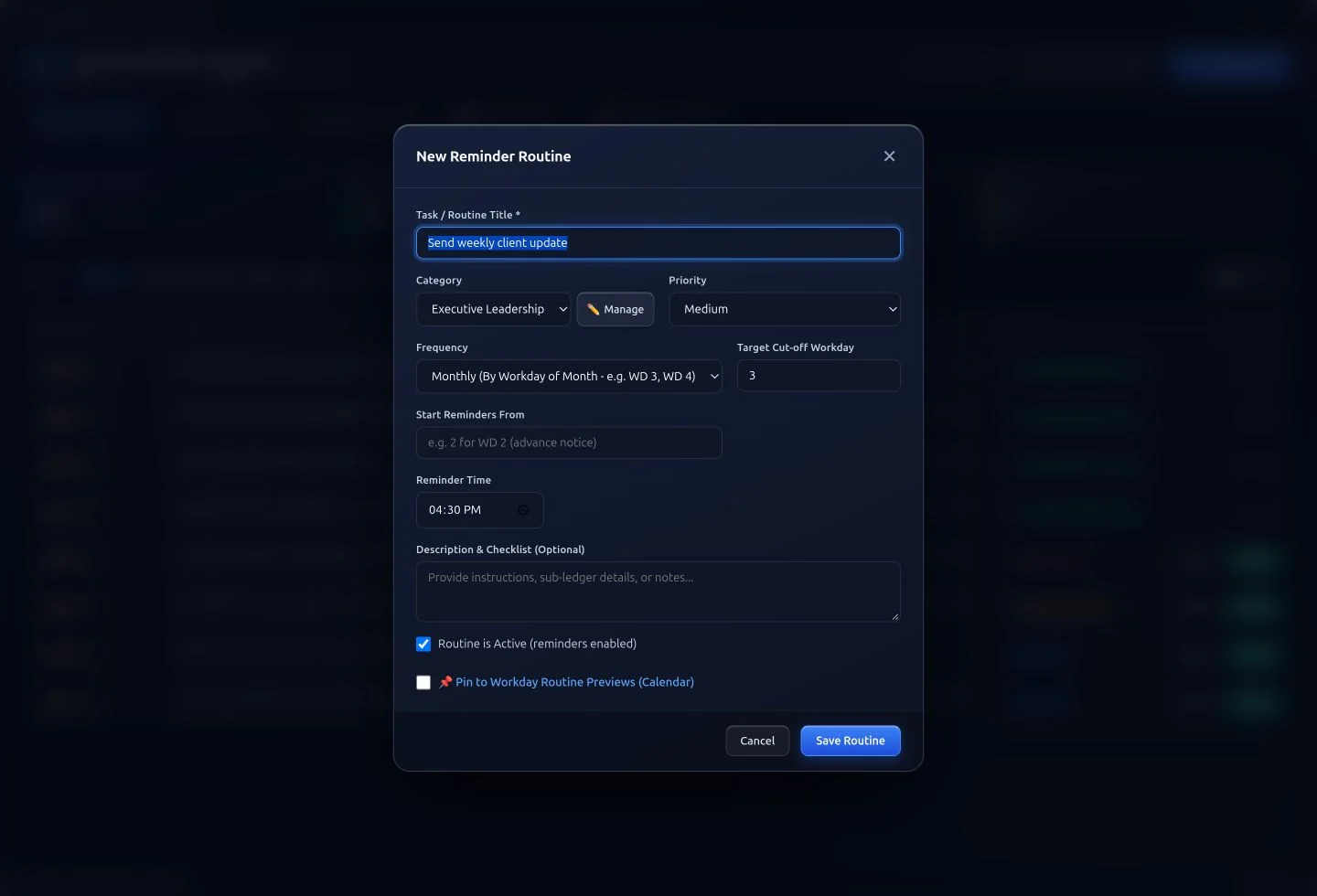
Open All Reminders and choose the button to add a new reminder.
Give it a clear title, such as “Submit Friday timesheet”. Choose a category and priority.
Select a repeat schedule: daily, every workday, weekly, monthly, monthly by workday, or a one-time date.
Set the reminder time. For a weekly timesheet, choose Friday and the time you want to act.
Add useful notes or checklist items, then save the reminder.
Check Today’s Agenda when it is due. To try the popup immediately, use the app’s test-alert control.
03 / FIT YOUR WORKING WEEK
Make business days count.
Open Workdays & Holidays and configure the holidays relevant to your schedule. Monthly workday reminders use business-day counts, excluding weekends and your configured holidays. Check the calendar before relying on a billing cut-off such as “Workday 3”.
In Health & Wellness, enable the eye-break, hydration, or posture reminders you want and adjust their intervals. Use Do Not Disturb when you need to pause alerts.
04 / WHEN THE ALERT ARRIVES
Act without losing your place.
Complete
Mark the task done and add useful completion notes where available.
Snooze or skip
Choose a snooze interval to return later, or skip today’s occurrence.
Review your record
Open Audit & Reports to review actions and export your history to Excel.
Pauzos must be running and your computer awake for scheduled alerts. Closing or quitting the app, sleep mode, and Do Not Disturb can affect when you see reminders.
05 / AFTER YOUR TRIAL
Keep two routines free. Or unlock them all.
After 72 hours, your first two routines remain free. Additional routines require a lifetime license.
After payment is verified and your license is activated, check your inbox and spam folder for the password setup email.
In Pauzos, sign in using the purchase email. If your email contains a verification code, enter it in the password field, then create your permanent password when prompted. Use Forgot Password to request another code if needed.
Your license includes future updates and two simultaneous logins. Reminders are stored locally; signing in on another computer does not sync your routines.
TROUBLESHOOTING
A little help, if you need it.
My reminder did not appear
Check that Pauzos is running, your computer is awake, Do Not Disturb is off, and the routine is enabled. Confirm its date, time, repeat rule, and holiday settings. Try a test alert.
My download or installation failed
Try the official direct link again and check your Downloads folder. Verify that the selected edition matches your system. On a managed computer, ask your administrator. Contact support with your operating system, app version, and the exact error message.
I paid but cannot activate
Use the same email address as checkout and check your spam folder. Keep your Razorpay payment ID. Contact support if verification or the activation email is delayed; do not pay again to resolve an activation issue.